
docsGuide使用说明
Using Afaron怎么用 Afaron
From the download to your first answer on the phone takes a few minutes. Everything you need is here; the app’s own setup window walks you through the same steps. 从下载到在手机上回第一条消息,几分钟就够。需要知道的都在这里;应用自己的设置窗口也会带你走一遍。
Watch it first先看一遍
The whole way, from the download link to an answer on the phone, recorded on a new Mac. The voice is in Chinese; English subtitles are in the player’s menu. 从下载链接到在手机上拿到回答,整个过程在一台全新的 Mac 上录下来。
Install安装
You need a Mac with Apple silicon (M1 or later) and macOS 14 or later, and a license key. During the beta the key comes from the person who invited you. 需要一台 Apple 芯片(M1 及以后)、macOS 14 或更新的 Mac,以及一个 license。测试期间,license 由邀请你的人发给你。
-
On the download page, paste the key and download the
.dmg. 在下载页粘贴 license,下载.dmg。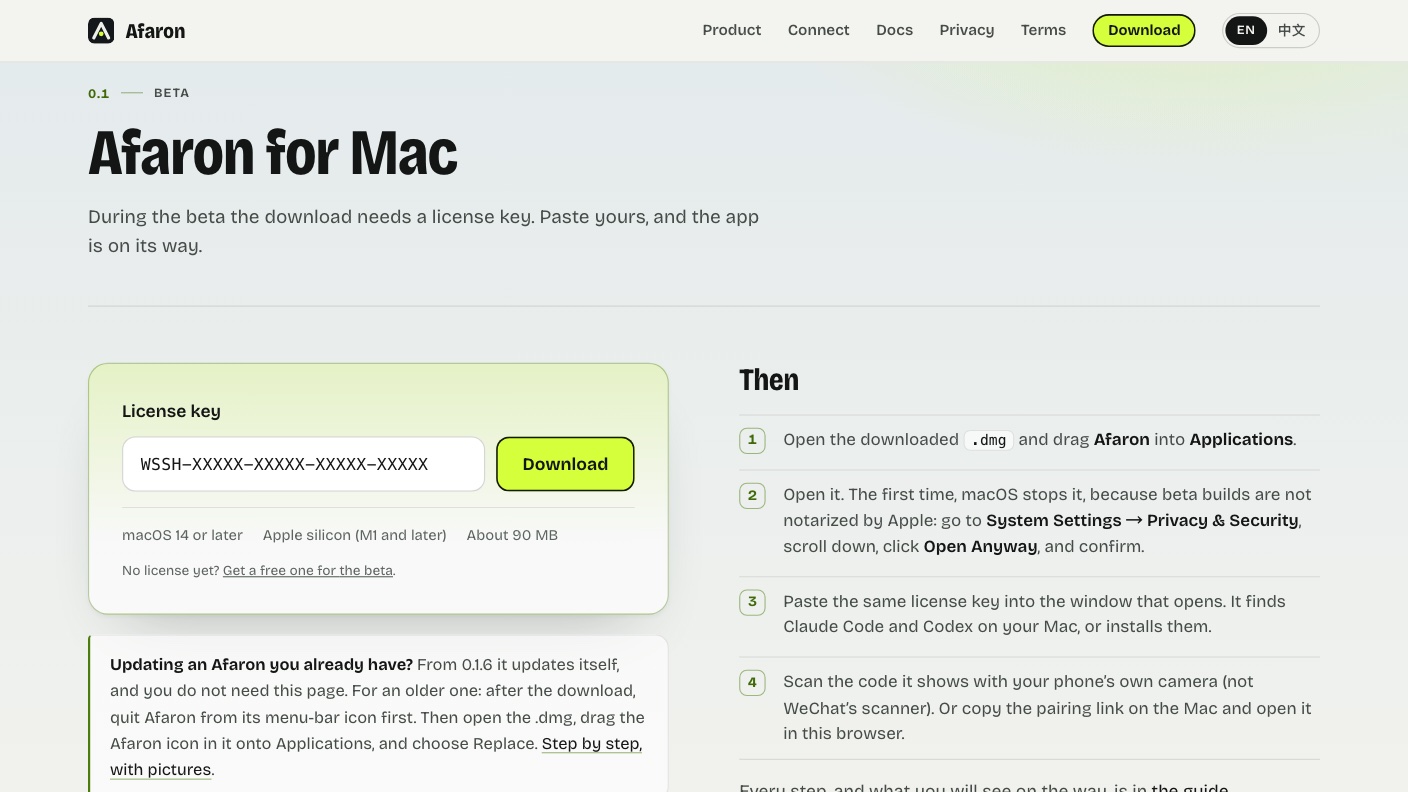
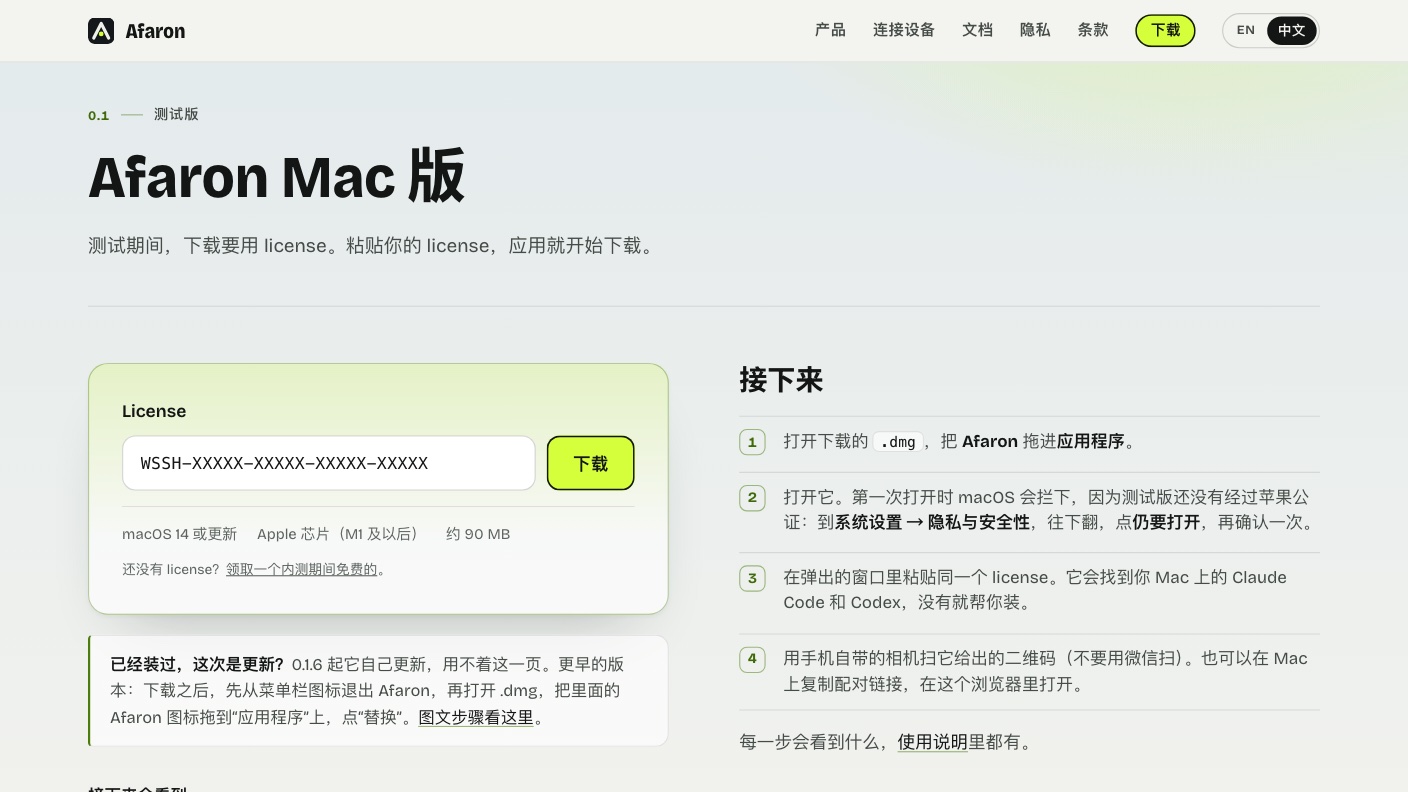
The download page, with the key from your link already in.下载页:链接里的 license 已经填好。 -
Open it and drag Afaron into Applications.
打开它,把 Afaron 拖进应用程序。
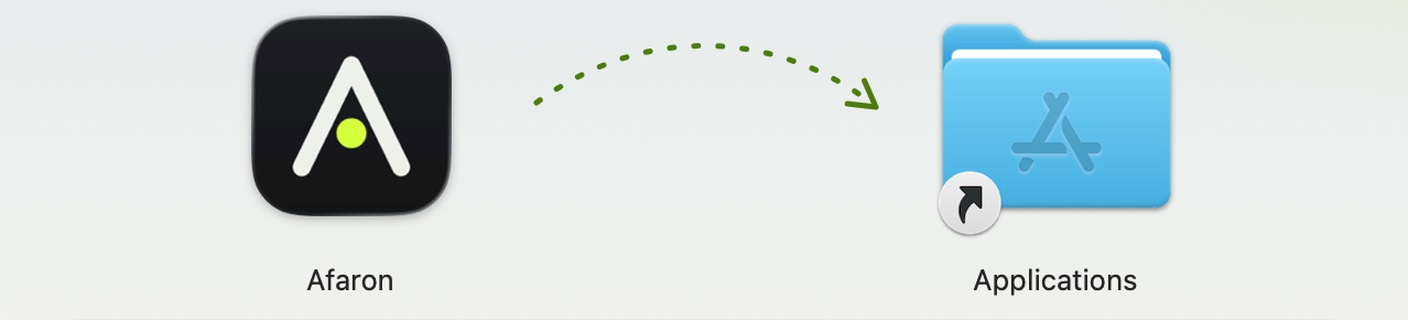
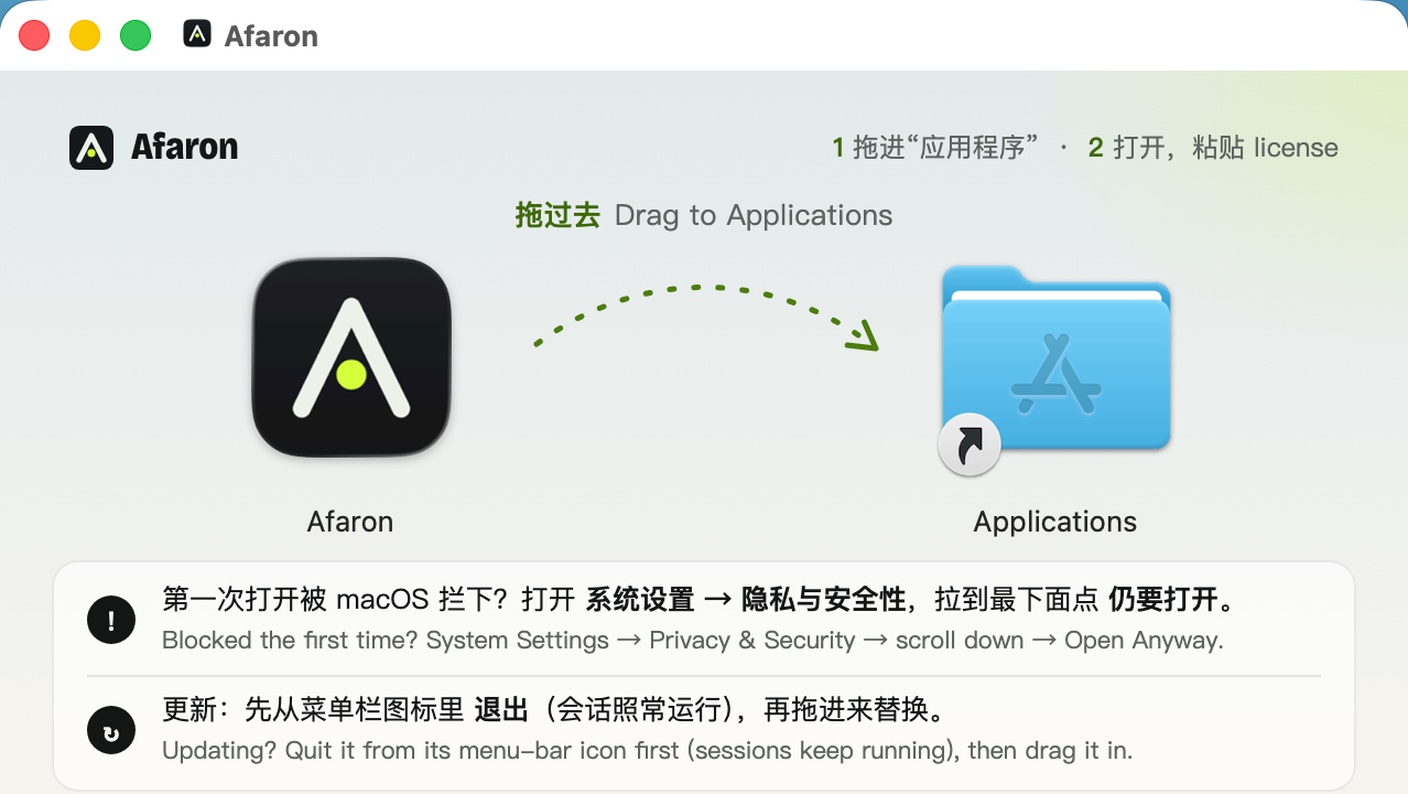
The installer window: drag the icon onto Applications.安装包窗口:把图标拖到“应用程序”上。 -
Open Afaron. macOS says it can’t check the app, because beta builds are not yet notarized by Apple. Click Done, open System Settings → Privacy & Security, scroll to the message about Afaron, click Open Anyway and confirm with your password or Touch ID. This is needed once.
打开 Afaron。macOS 会说无法检查这个应用,因为测试版还没有经过苹果公证。点完成,打开系统设置 → 隐私与安全性,翻到关于 Afaron 的那条提示,点仍要打开,再用密码或触控 ID 确认。只需要这一次。
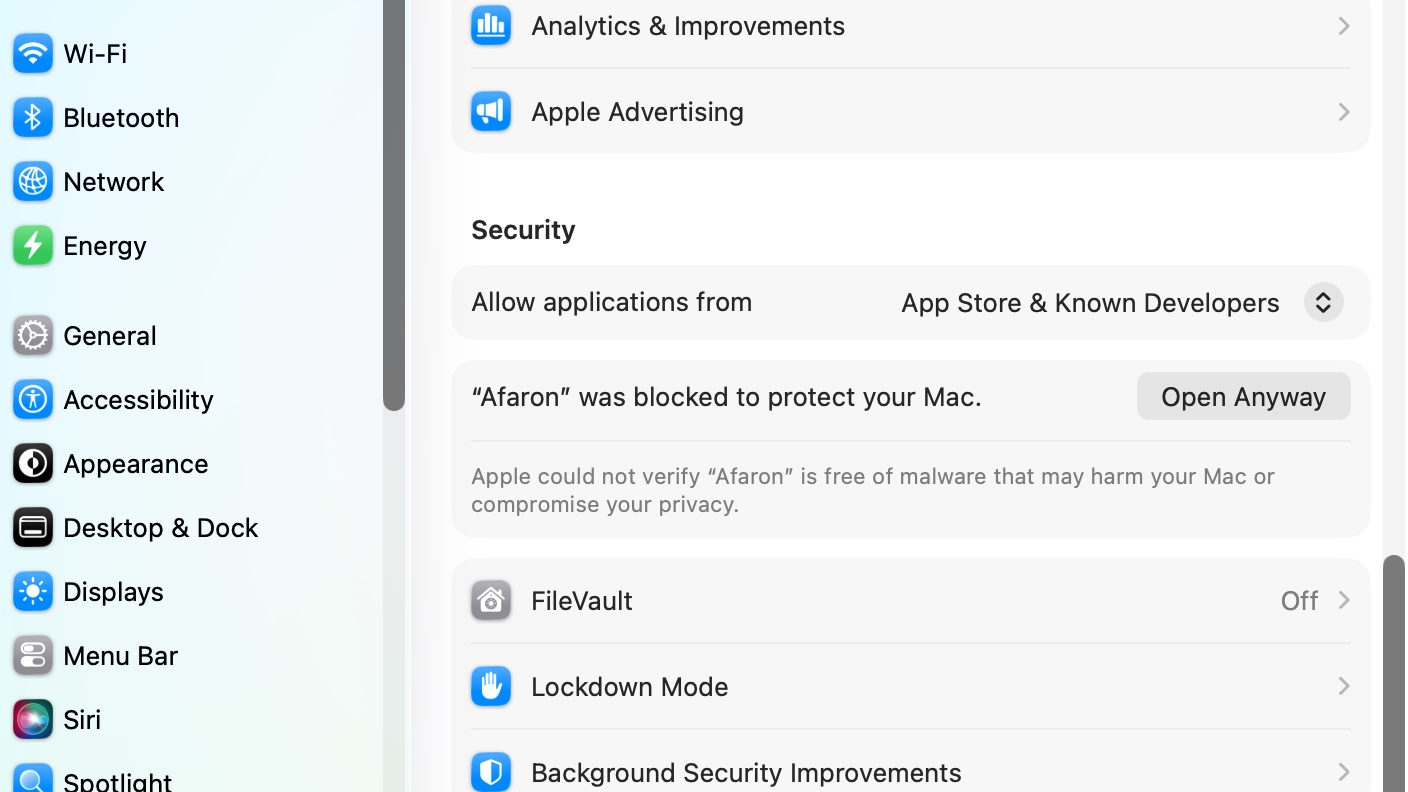
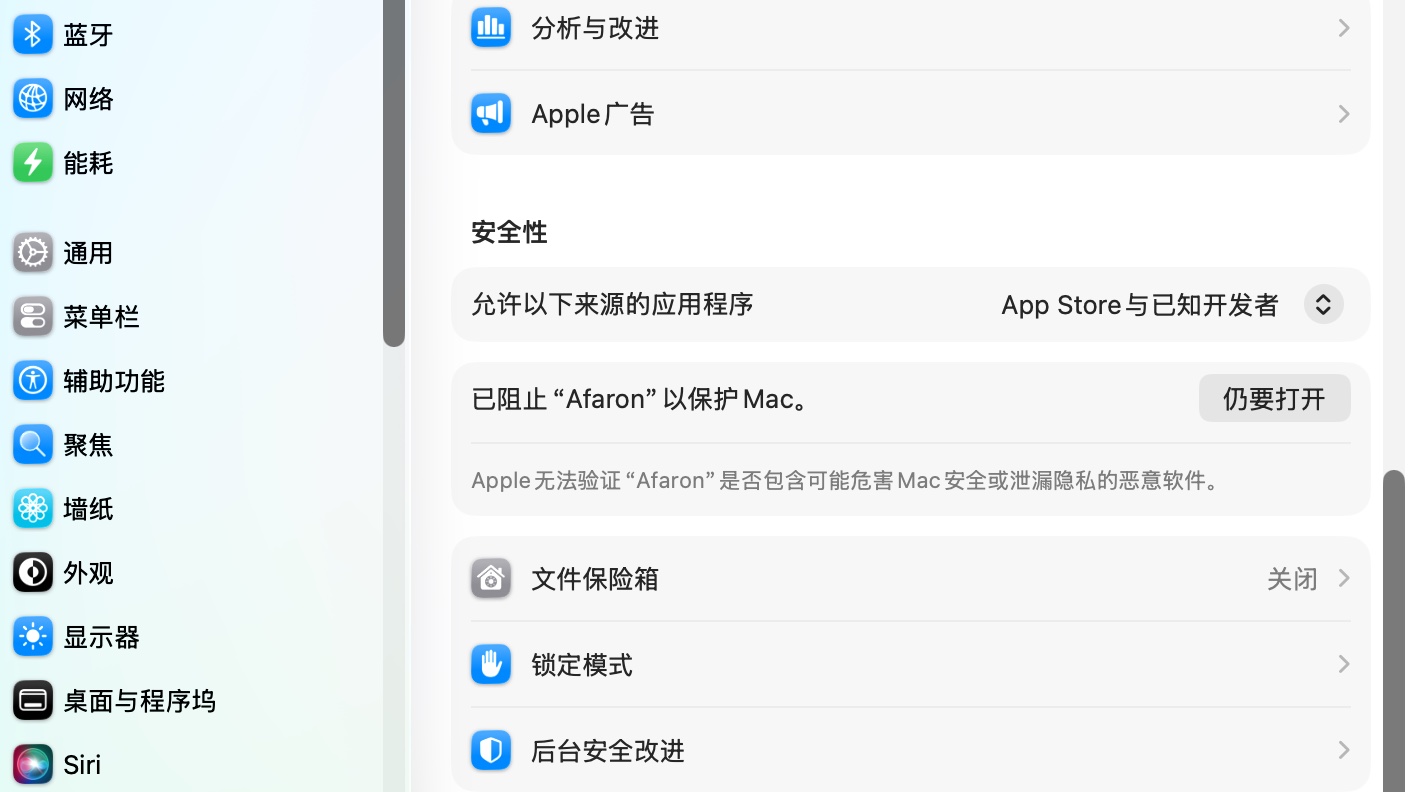
System Settings → Privacy & Security, at the bottom: Open Anyway.系统设置 → 隐私与安全性,拉到最下面:仍要打开。 -
The Afaron mark, an “A” with a dot, appears in the menu bar, and the setup window opens. Paste your license key there (the whole invitation message works too) and click Activate.
菜单栏上出现 Afaron 的标志(一个带点的“A”),设置窗口随之打开。在里面粘贴你的 license(整段邀请消息直接粘进去也行),点激活。
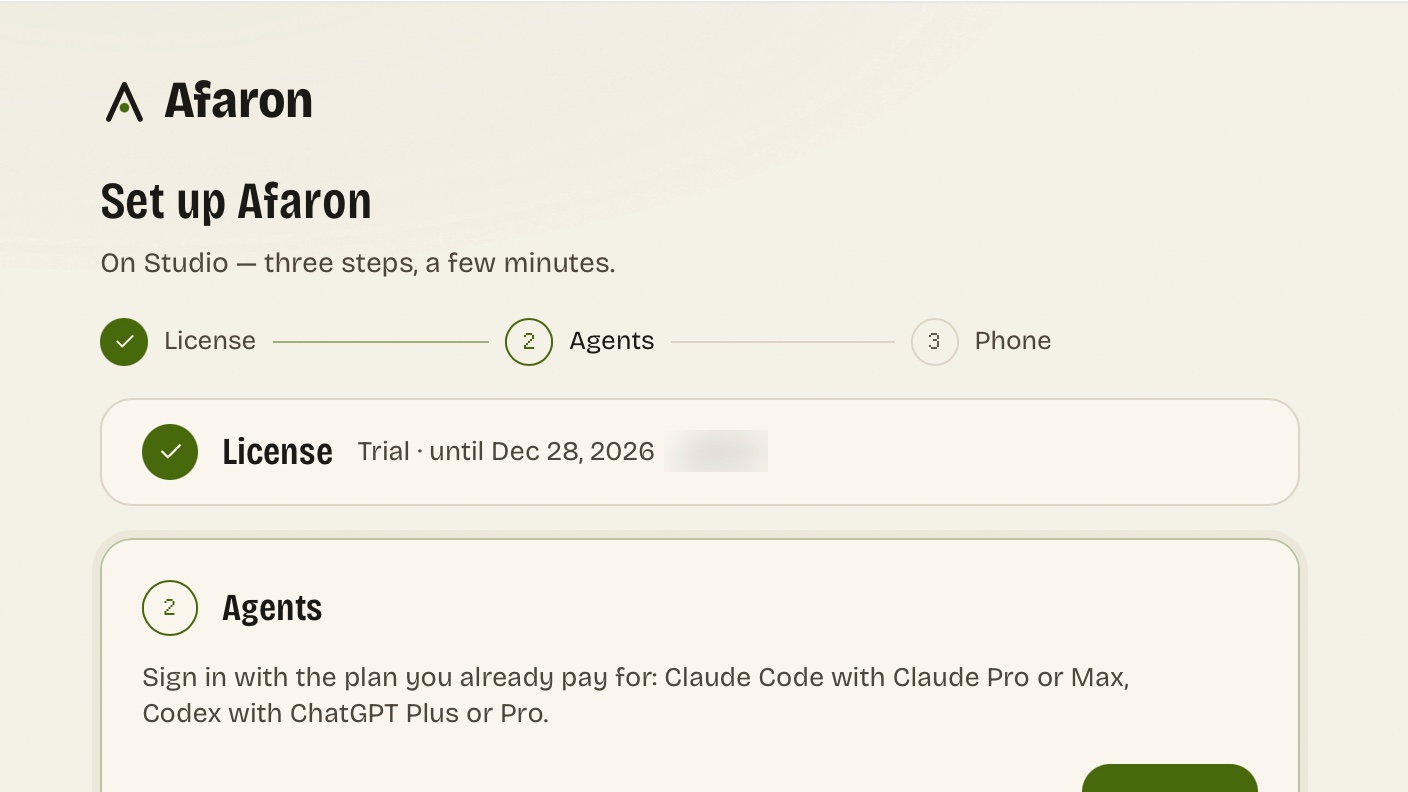
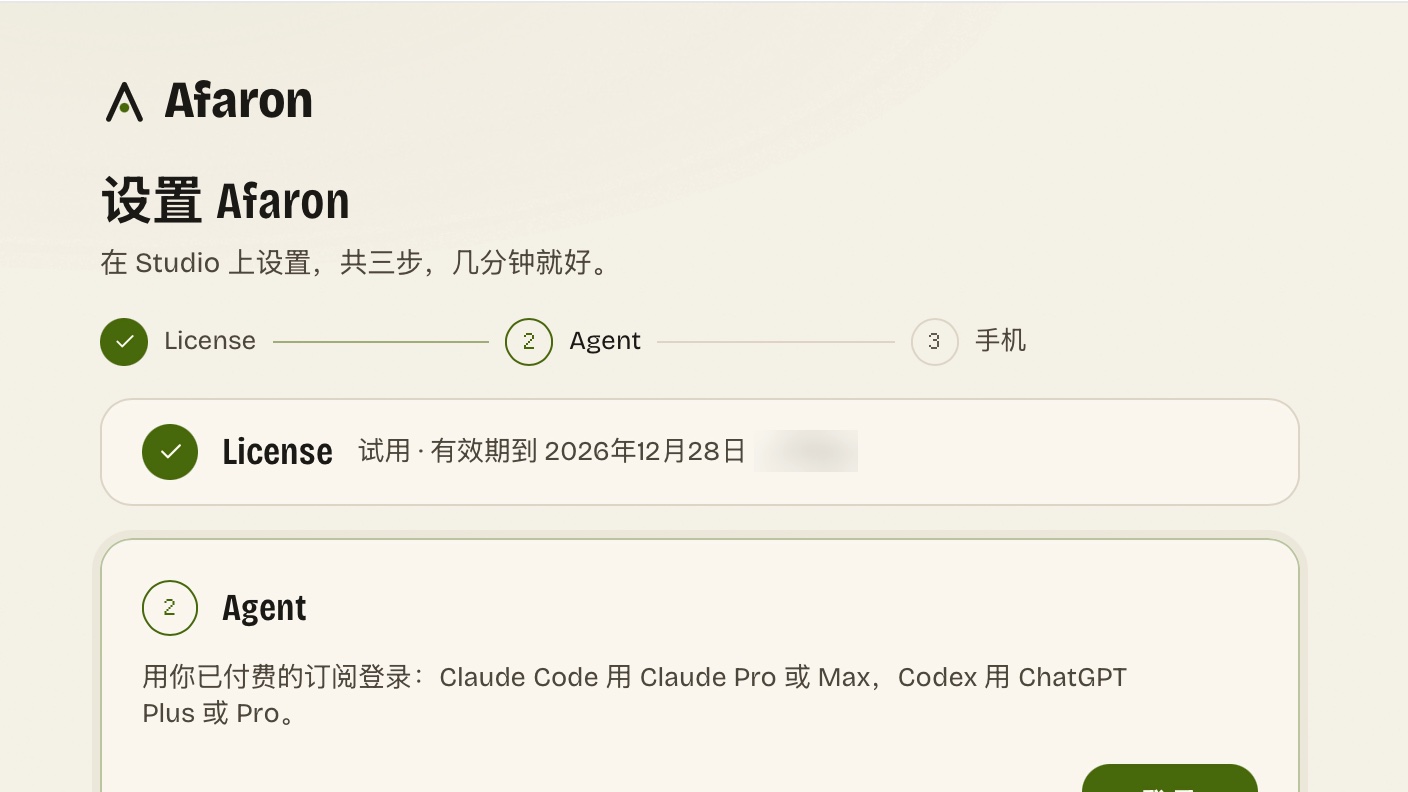
After Activate, the license folds to one line with its end date, and the next step opens.点“激活”之后,License 收成一行、显示有效期,下一步随之展开。


Afaron starts by itself when you log in to the Mac. The menu-bar icon has everything else: Open Afaron, Pair a phone…, Set up… to see this window again, the log, and Quit. New versions install themselves (from 0.1.6): see Updating Afaron. 之后每次登录这台 Mac,Afaron 都会自己启动。其他功能都在菜单栏图标里(中文系统上显示中文):打开 Afaron、配对手机…、设置…(再打开这个窗口)、日志,以及退出 Afaron(会话继续运行)。新版本会自己装上(0.1.6 起),见怎么更新 Afaron。
Agents and modelsagent 和模型
The setup window looks for Claude Code and Codex on your Mac and tells you what it finds: not installed, installed but not signed in, or signed in and with which plan. Claude Code is the one we recommend to start with. 设置窗口会在你的 Mac 上找 Claude Code 和 Codex,并告诉你找到了什么:没装、装了但没登录,或已登录、用的是哪种订阅。刚开始我们推荐先用 Claude Code。
- Install runs the vendor’s own installer right in the setup window, with its progress; View terminal shows its raw output. Nothing else is installed. 安装:直接在设置窗口里运行官方自己的安装程序,显示进度;点查看终端能看原始输出。不会装别的东西。
- Sign in starts the agent’s own sign-in, which opens the official sign-in page in your Mac’s browser; if the browser shows a code, paste it into the field the window offers. Claude Code works with a Claude Pro, Max or Team plan; Codex with a ChatGPT Plus or Pro plan. Your password goes only to Anthropic or OpenAI. 登录:启动 agent 自己的登录,Mac 上的浏览器会打开官方登录页;如果浏览器里显示了一串代码,粘贴到窗口给出的输入框里。Claude Code 用 Claude Pro、Max 或 Team 订阅;Codex 用 ChatGPT Plus 或 Pro 订阅。你的密码只交给 Anthropic 或 OpenAI。


Another model别的模型
No plan, or want a different model? Choose use another model, pick a provider (DeepSeek, Zhipu GLM, Moonshot Kimi, MiniMax, Alibaba Cloud Bailian for Qwen, Volcengine Ark, StepFun) or any compatible address, and paste your own API key. A monthly coding plan works the same way, with the key that plan gives you: the list has the plans of Zhipu, Kimi, MiniMax, Bailian, Volcengine Ark and StepFun with their own addresses (the Bailian plan works with Claude Code only). Some providers have free models. Claude Code and Codex then run on that model, and you choose it when you start a session. What goes beyond a plan, and every pay-as-you-go source, is billed by that provider, not by Afaron. 没有订阅,或想换个模型?点 use another model,挑一家服务商(DeepSeek、智谱 GLM、月之暗面 Kimi、MiniMax、阿里云百炼的通义千问、火山方舟、阶跃星辰),或填任意兼容的地址,再粘贴你自己的 API key。按月订阅的 Coding Plan 也是这样用,粘贴套餐给你的 key 即可:列表里已经有智谱、Kimi、MiniMax、百炼、火山方舟、阶跃星辰各自套餐的地址(百炼的 Coding Plan 只能配 Claude Code)。有些服务商提供免费模型。之后 Claude Code 和 Codex 就跑在那个模型上,新建会话时选它即可。超出套餐额度的部分,以及按量计费的来源,由那家服务商收费,Afaron 不收。
The key is kept in your Mac’s Keychain and sent only to that provider. Usage is billed by the provider to your own account; Afaron sells no model access. key 存在你 Mac 的钥匙串里,只发给那家服务商。用量由服务商从你自己的账户里扣;Afaron 不卖任何模型额度。
Your phone手机
Once the license is in, your Mac gets an address of its own and the setup window shows a QR code. license 填好后,你的 Mac 会有一个自己的地址,设置窗口上出现一个二维码。
- Point the phone’s own camera at the code (not a scanner inside another app, such as WeChat) and open the link in the browser; on iPhone, in Safari. The phone pairs with the Mac and shows your sessions. 用手机自带的相机对准二维码(不要用微信扫),在浏览器里打开链接,iPhone 请用 Safari。手机和 Mac 完成配对,显示你的会话。
- On iPhone and iPad: tap Share → Add to Home Screen, then open Afaron from the Home Screen. The Afaron there is kept apart from Safari, so it pairs once for itself: tap Scan the Mac’s code in it and point it at the code on the Mac, or paste a link (in Safari, the strip above the session list copies one for you). iPhone 和 iPad:点分享 → 添加到主屏幕,之后从主屏幕打开 Afaron。主屏幕上的 Afaron 和 Safari 是分开的,要自己配对一次:在它里面点扫 Mac 上的码,对准 Mac 上的二维码;或者粘贴一条链接(在 Safari 里,会话列表上方的提示条可以帮你复制)。
- Turn on notifications in its settings, so a question from an agent reaches you. 在它的设置里打开通知,agent 有问题时就能找到你。


Pairing makes a key that only that device and your Mac hold; everything between them is encrypted with it. To add a tablet or a computer, use Pair a phone… in the menu bar, or Settings → Devices on a paired device. The quickest way has nothing to type but a short address that is the same for everyone (from 0.1.11): on the new device open afaron.com/go, and scan the code it shows from a paired device (Settings → Devices → Scan a new device’s code). One scan is all (from 0.1.13): a moment later that device asks whether to let the new one in; agree, and the new device opens. (From 0.1.9 the same scan works with your Mac’s own address opened on the new device.) To remove a device, delete it under Settings → Devices; signing out on a device also unpairs it. 配对时生成一把只有这台设备和你的 Mac 才有的密钥,它们之间的一切都用它加密。要加一台平板或电脑,用菜单栏的 配对手机…,或在已配对设备上打开 设置 → 设备。最省事的办法只需要输一个人人都一样的短地址(0.1.11 起):在新设备上打开 afaron.com/go,用已配对的设备扫它显示的码(设置 → 设备 → 扫码连接新设备)。只用扫这一次(0.1.13 起):一两秒后那台设备会问要不要让新设备连上,点同意,新设备就打开了。(0.1.9 起,在新设备上直接打开你 Mac 自己的地址,也可以这样扫。)要移除设备,在 设置 → 设备 里删掉;在设备上退出登录也会解除配对。
Day to day日常使用
- The list shows every session on the Mac: which are working, which wait for you. + starts a new one, with Claude Code, Codex or a shell, in the folder and on the model you choose. 会话列表:Mac 上的每个会话都在这里,谁在干活、谁在等你,一眼看清。+ 新建会话:选 Claude Code、Codex 或 shell,选文件夹和模型。
- Chat and Term. A session opens as a conversation; Term shows the real terminal. Questions and permission prompts appear as buttons, and as a notification when you are elsewhere. Chat 和 Term。会话默认以对话的样子打开;Term 是原样的终端。提问和权限请求都变成按钮;你不在时,也会推送通知。
- Files. Attach photos and files to a message; the folder button opens the project’s files, to look at what the agent made or to download it. 文件。消息里可以附照片和文件;文件夹按钮打开项目文件,看 agent 做了什么,或下载下来。
- Voice. The microphone writes what you say. The first time you tap it, the Mac app asks where your voice is recognised. Online, by OpenAI: more accurate with names and code terms, nothing to download; the recording goes from your Mac straight to OpenAI, and the text is then tidied by DeepSeek by default, together with the latest messages of that session, through Afaron’s license service, which keeps none of it. On your Mac only: the recording never leaves it, and the Mac downloads a speech model first (575 MB, once). Settings changes the choice at any time. Online recognition comes with the license, where OpenAI’s service is available. 语音。点麦克风说话,自动转成文字。第一次点的时候,Mac App 会问你语音在哪里识别。在线,由 OpenAI 识别:人名和代码里的词更准,不用下载;录音从你的 Mac 直接发给 OpenAI,识别出的文字连同该会话最近的几条消息,默认再经 Afaron 的授权服务交给 DeepSeek 整理,授权服务不保存。只在你的 Mac 上:录音不离开 Mac,Mac 会先下载一个语音模型(575 MB,只需一次)。之后随时可以在设置里改。在线识别包含在 license 里,在 OpenAI 提供服务的地区可用。
- The screen. The monitor button shows the Mac’s screen, live, and a tap there is a click on the Mac. It is set up once, on the Mac: see The Mac’s screen. 屏幕。显示器按钮能实时看到 Mac 的屏幕,在上面点一下就是在 Mac 上单击。它要先在 Mac 上设置一次,见Mac 的屏幕。
- Apps. An agent you allow reads what an app’s window shows and leaves a draft there for you: a note, a reply, a form. It never sends. Set up once, on the Mac: see The Mac’s apps. 应用。你允许的 agent 可以读应用窗口里显示的内容,并把草稿留在那里等你:一条备忘、一条回复、一张表单。它不会发送。它要先在 Mac 上设置一次,见Mac 上的应用。


Sessions run in tmux on the Mac. Closing the browser, losing signal or quitting Afaron does not stop them. 会话跑在 Mac 的 tmux 里。关掉浏览器、手机没信号、甚至退出 Afaron,都不会让它们停下。
The Mac’s screenMac 的屏幕
Some things only happen on the Mac’s screen: a dialog that asks “Allow?”, a password prompt of macOS, an app with no command line. With the screen set up, you see and tap the Mac’s screen from your phone, and an agent you allow can deal with those dialogs itself. 有些事只发生在 Mac 的屏幕上:一个问“允许吗?”的对话框、macOS 的密码框、没有命令行的应用。设置好屏幕以后,你在手机上就能看到并点按 Mac 的屏幕;你允许的 agent 也能自己处理这些对话框。
It is set up once, on the Mac itself, in Afaron’s window: This Mac → Screen. A phone cannot do this step, and never asks for the Mac’s password. 它只需要设置一次,而且要在 Mac 本机上、Afaron 的窗口里做:这台 Mac → 屏幕。手机上做不了这一步,也不会问你 Mac 的密码。
-
Turn on Screen Sharing. Open System Settings takes you to General → Sharing; switch Screen Sharing on there. Afaron cannot turn it on for you, and the step ticks by itself once it is on.
打开“屏幕共享”。点打开系统设置会跳到通用 → 共享,在那里把屏幕共享打开。Afaron 没办法替你打开;打开以后这一步会自动打勾。
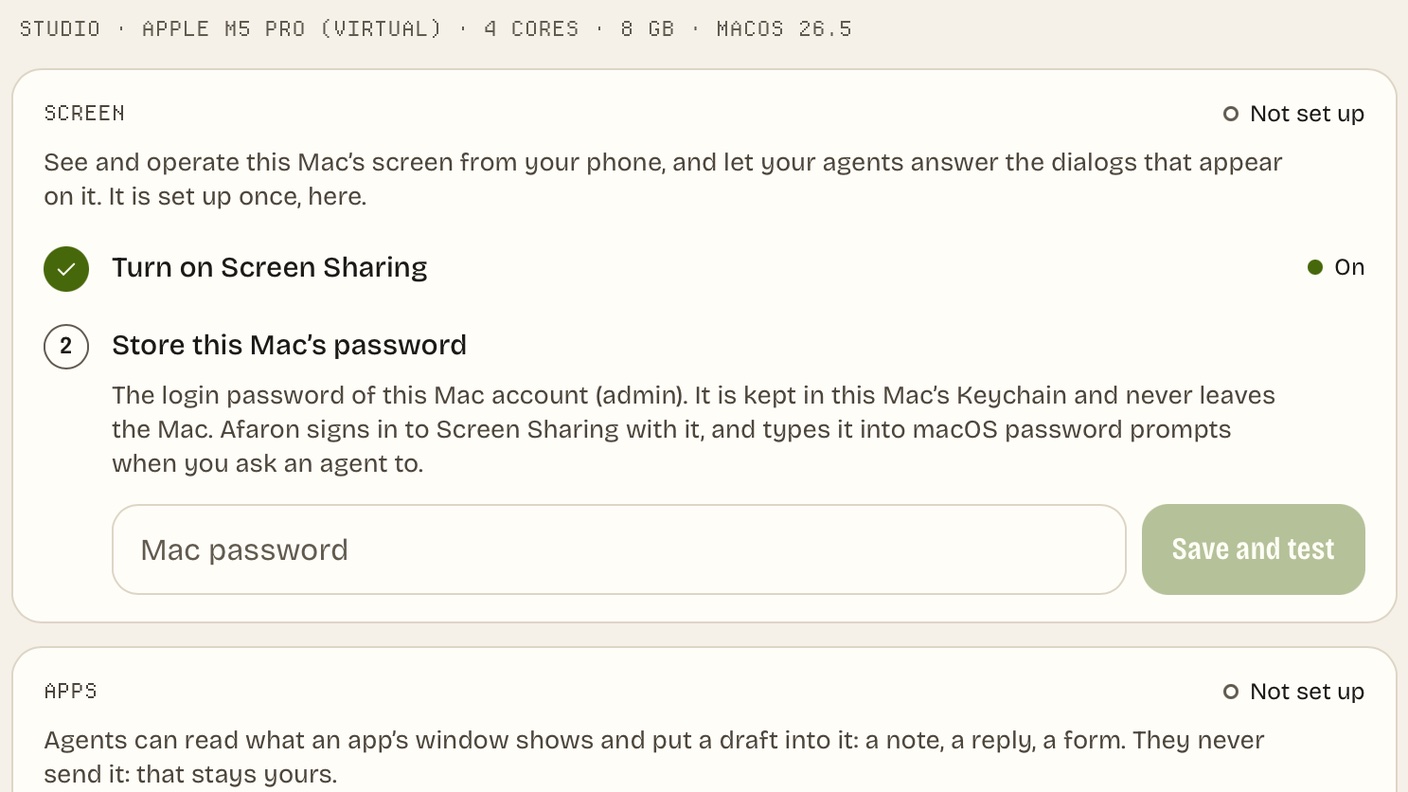
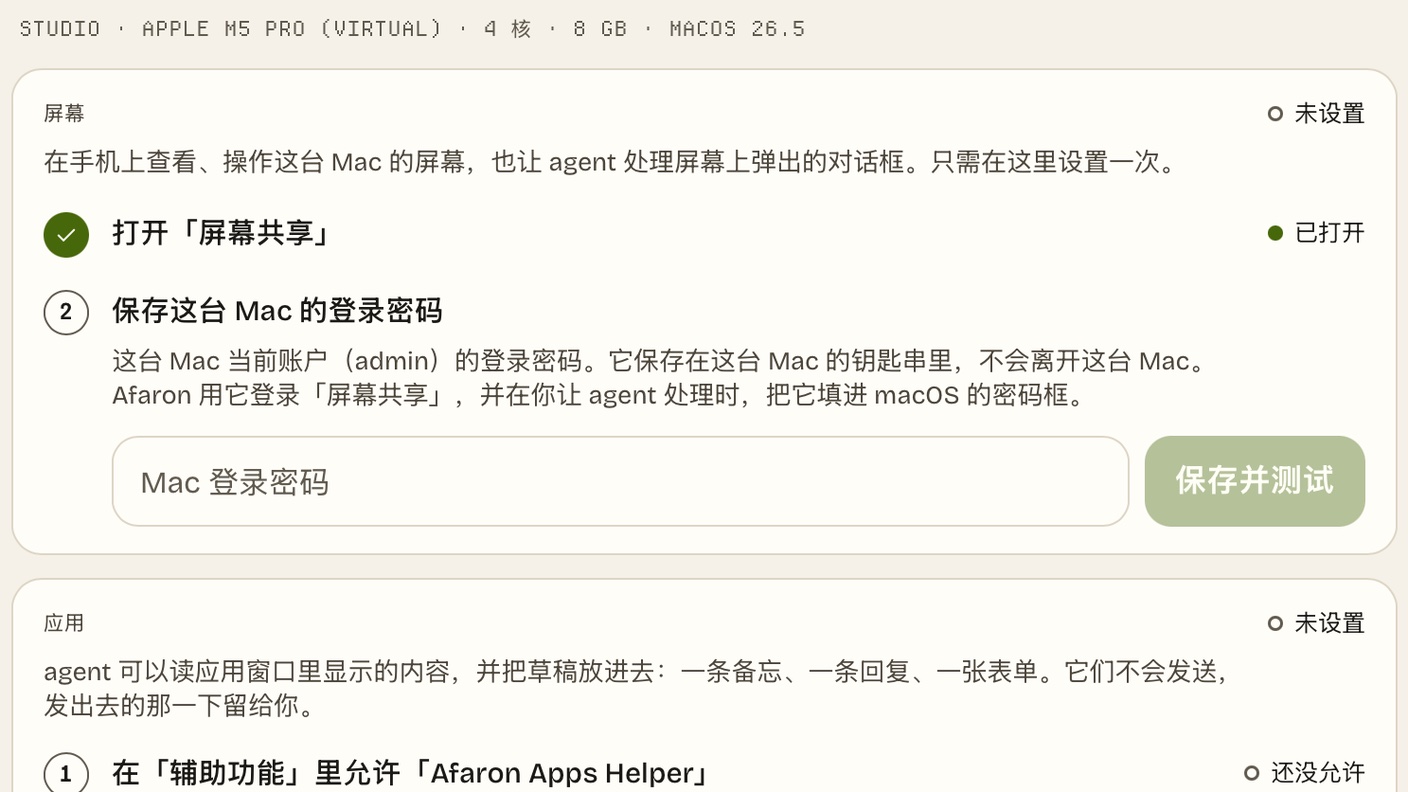
This Mac → Screen, before it is set up: two steps.这台 Mac → 屏幕,设置之前:两步。 - Save the Mac’s login password. Type the password of the account you are logged in to and choose Save and test. Afaron signs in to Screen Sharing with it once to check it, and keeps it in this Mac’s Keychain. It never leaves the Mac. A wrong password is not kept. 保存这台 Mac 的登录密码。输入你当前登录的账户的密码,点保存并测试。Afaron 会先用它登录一次屏幕共享来确认,然后把它存进这台 Mac 的钥匙串。密码不会离开这台 Mac;输错的密码不会被保存。
-
Optional: let agents use the screen. The switch Agents may use the screen installs two skills for Claude Code and Codex. An agent can then take a screenshot, click and type on this Mac, allow a macOS permission dialog, and have the stored password typed into a macOS password prompt. Any other password it asks you for in a pop-up on your phone; what you type goes straight into the field on the Mac, and not into the conversation.
可选:允许 agent 使用屏幕。打开允许 agent 使用屏幕,会给 Claude Code 和 Codex 各装两个技能。之后 agent 可以截图、在这台 Mac 上点击和输入、点掉 macOS 的权限弹窗,并把你存的密码填进 macOS 的密码框。别的密码它会在你手机上弹窗问你,你输入的内容直接进到 Mac 上的那个输入框,不进对话。
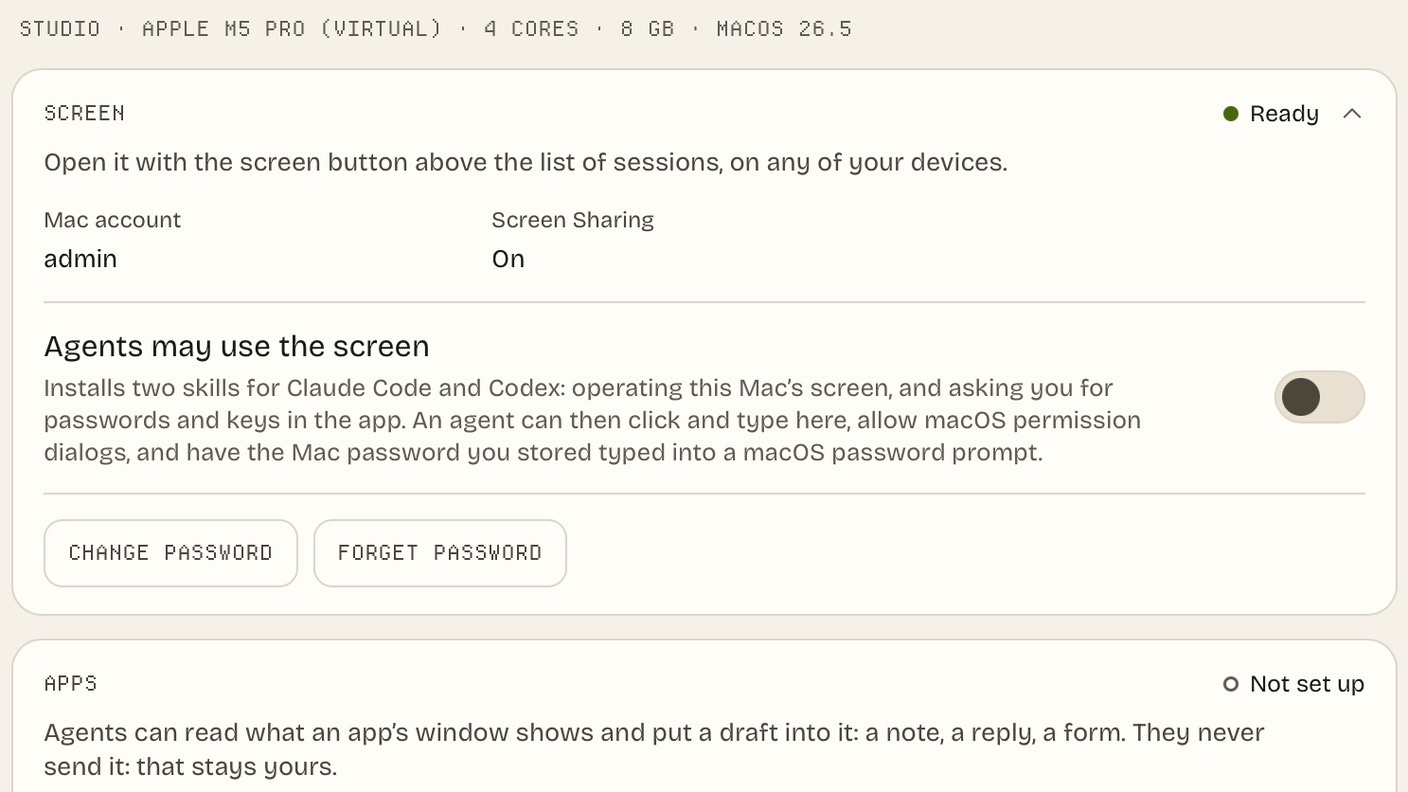
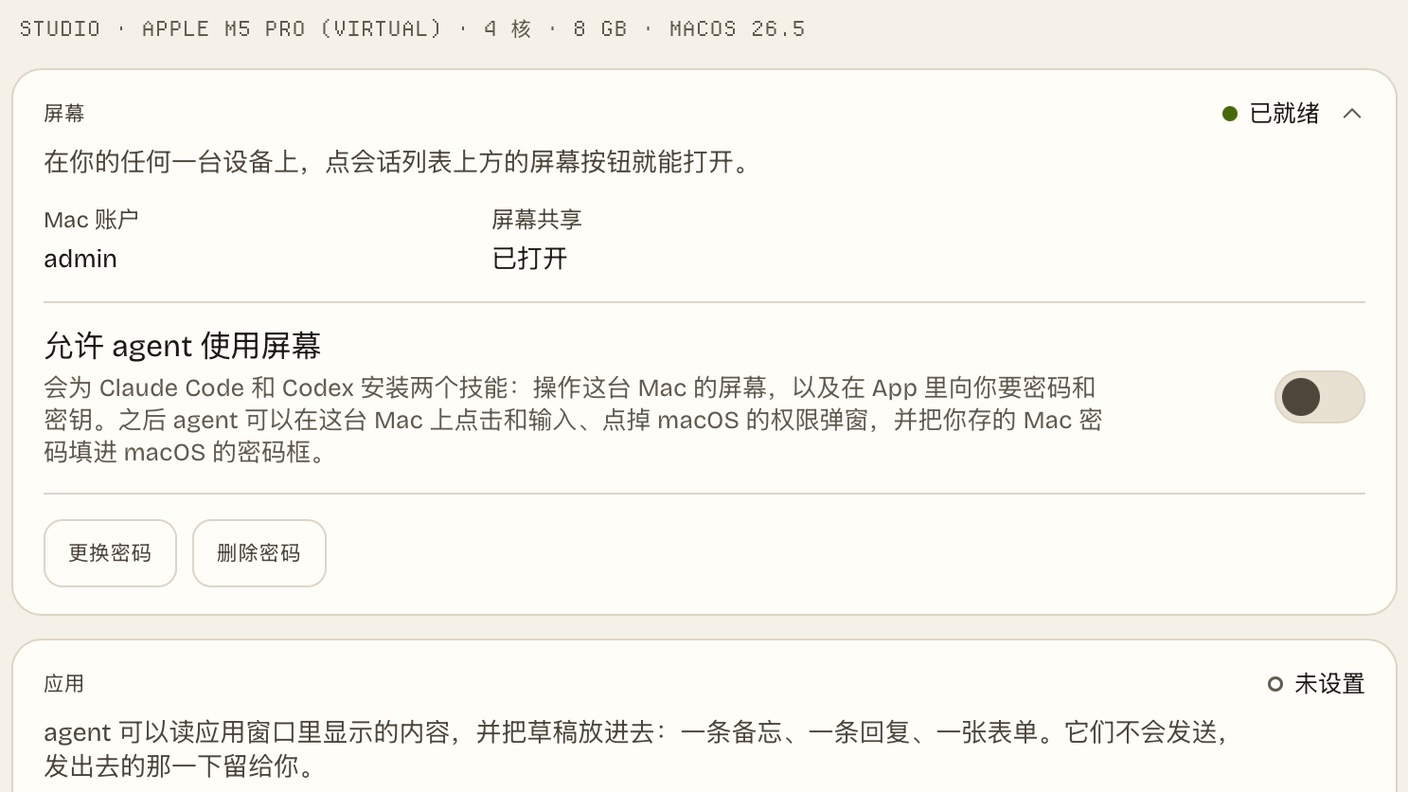
Ready. The switch for the agents is off until you turn it on.设置完成。给 agent 的开关默认是关的,由你来开。


What this opens, and what it does not这会打开什么,不会打开什么
- Screen Sharing is macOS’s own feature. While it is on, the Mac answers on the local network to anyone who knows a Mac account’s password; in the same pane you can limit which accounts may connect. Afaron itself uses it only from the Mac, to the Mac. 屏幕共享是 macOS 自带的功能。打开期间,同一个局域网里知道这台 Mac 账户密码的人也能连它的屏幕;在同一个设置页里可以限定哪些账户能连。Afaron 自己只从这台 Mac 连它自己。
- If only the Mac itself should reach its screen: turn on Block all incoming connections in System Settings → Network → Firewall → Options. Afaron keeps working, your phone included; other computers can then connect to nothing on this Mac, file sharing and remote login included. 如果只想让这台 Mac 自己能连它的屏幕:在系统设置 → 网络 → 防火墙 → 选项里打开阻止所有传入连接。Afaron 照常工作,手机也照常能用;别的电脑就连不上这台 Mac 的任何服务了,文件共享和远程登录也包括在内。
- Nothing is opened to the internet: your phone still reaches the Mac through Afaron’s encrypted connection, as before. Remote Login (SSH) is not used and is not touched. 不会向互联网开放任何东西:手机还是像原来一样,经 Afaron 的加密连接到达 Mac。不使用、也不改动“远程登录”(SSH)。
- The screen needs no Screen Recording and no Accessibility permission: the picture and the clicks go through Screen Sharing. (Accessibility is asked for only by the apps tool below, and only if you set that up.) 屏幕这部分不需要“屏幕录制”和“辅助功能”权限:画面和点按都经屏幕共享完成。(只有下面的应用工具会用到“辅助功能”,而且要你自己去设置才有。)
- To undo it: Forget password in the same card, and switch Screen Sharing off in System Settings. 想撤销:在同一张卡片里点忘记密码,再到系统设置里把屏幕共享关掉。
The Mac’s appsMac 上的应用
An agent you allow can read what an app’s window shows and put a draft into it: a note, a reply, a form. It never sends: that last step stays yours. 你允许的 agent 可以读应用窗口里显示的内容,并把草稿放进去:一条备忘、一条回复、一张表单。它不会发送,发出去的那一下留给你。
Like the screen, it is set up once, on the Mac itself, in Afaron’s window: This Mac → Apps. A phone only shows whether it is set up. 和屏幕一样,它只需要设置一次,而且要在 Mac 本机上、Afaron 的窗口里做:这台 Mac → 应用。手机上只能看到它设置好了没有。
-
Allow “Afaron Apps Helper” in Accessibility. Open System Settings takes you to Privacy & Security → Accessibility. Switch Afaron Apps Helper on there; macOS asks for the Mac’s password or Touch ID. The card notices by itself and says Ready. The first time, the button may take a minute or two: macOS checks the helper before it lets it start.
在“辅助功能”里允许“Afaron Apps Helper”。点打开系统设置会跳到隐私与安全性 → 辅助功能,在那里把Afaron Apps Helper打开;macOS 会要你输入 Mac 的密码或使用触控 ID。卡片会自己发现,并显示已就绪。第一次点这个按钮可能要等一两分钟:macOS 要先检查这个小助手,才让它启动。
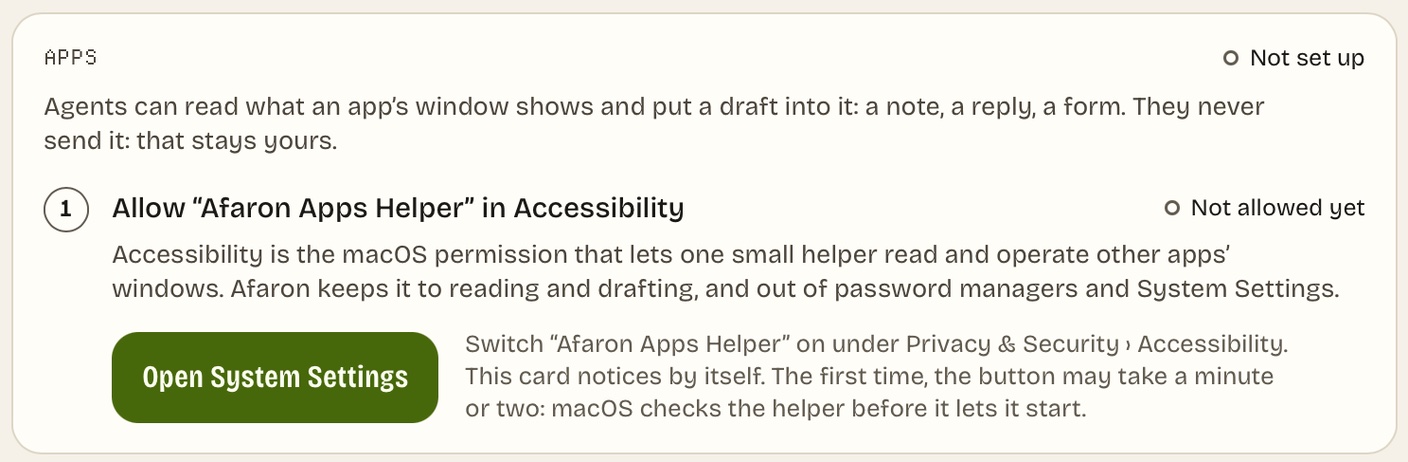
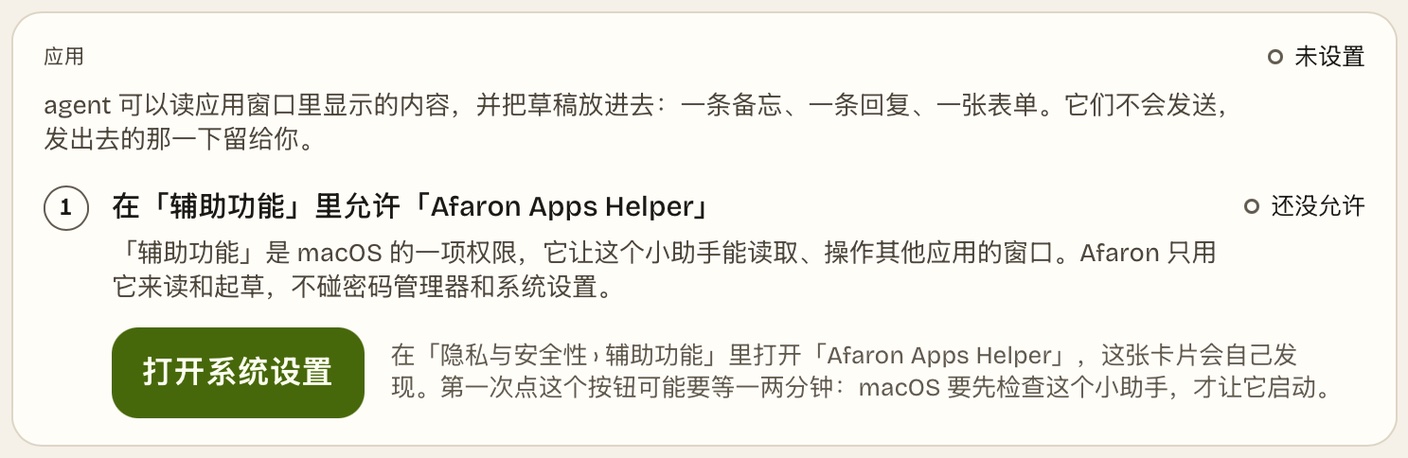
This Mac → Apps, before it is set up: one step.这台 Mac → 应用,设置之前:一步。 -
Optional: let agents use apps. The switch Agents may use apps gives Claude Code and Codex the tool. Sessions that are already running get it when they are restarted. Switched off, it stops for all of them at once.
可选:允许 agent 使用应用。打开允许 agent 使用应用,Claude Code 和 Codex 就有了这个工具。已经在运行的会话重启后才有;关掉以后,所有会话立刻不能再用。
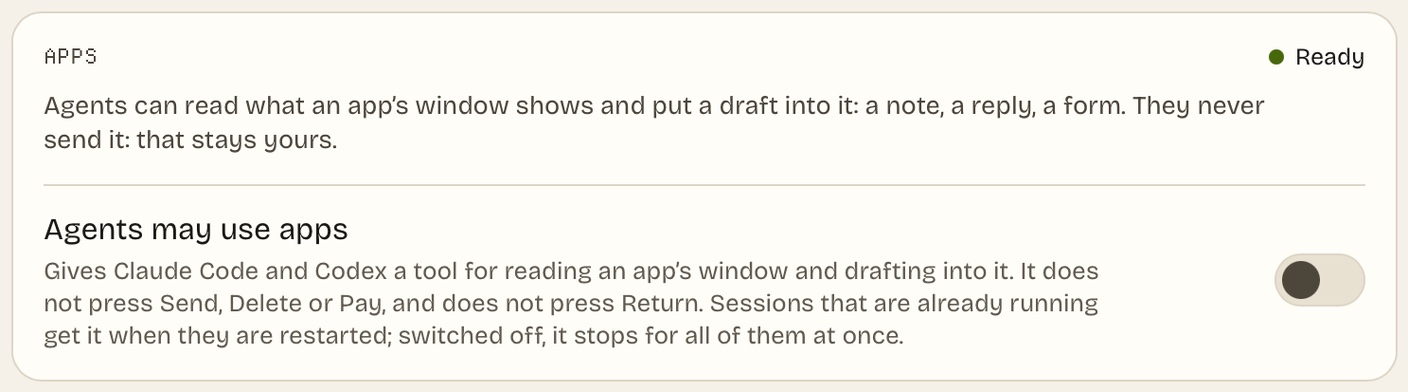

Ready. The switch for the agents is off until you turn it on.设置完成。给 agent 的开关默认是关的,由你来开。


What it does, and what it does not它做什么,不做什么
- It reads a window as text, scrolls, clicks ordinary buttons and writes into text fields. What it writes is a draft: it stays in the field for you to read, change and send. 它把窗口读成文字,能滚动、点普通的按钮、往输入框里写字。它写进去的是草稿:留在输入框里,由你来看、来改、来发。
- It does not press Return or Enter, and does not click buttons named Send, Post, Submit, Pay, Buy, Transfer, Delete or Remove. 它不按回车,也不点叫“发送”“发布”“提交”“支付”“购买”“转账”“删除”“移除”的按钮。
- It does not read or fill password fields, and it stays out of System Settings, macOS’s password prompts, the Passwords app, Keychain Access and password managers such as 1Password and Bitwarden. 它不读、也不填密码框;系统设置、macOS 的密码提示、“密码”应用、“钥匙串访问”,以及 1Password、Bitwarden 这类密码管理器,它都不碰。
- Accessibility is a strong permission: a program that has it can read and operate other apps’ windows. Here it is given to the small helper only, and the helper itself keeps the rules above. “辅助功能”是一项很强的权限:有了它,一个程序就能读取、操作其他应用的窗口。这里它只给了这个小助手,上面这些规则由小助手自己把守。
- To undo it: switch Afaron Apps Helper off under Privacy & Security → Accessibility, or remove it from that list. 想撤销:在隐私与安全性 → 辅助功能里把Afaron Apps Helper关掉,或者从列表里移除。
How it connects怎么连上的
Your Mac’s address looks like https://w-xxxxxxxxxx.wenqian.dev. When the license is entered, our license service asks Cloudflare for a tunnel for your Mac; the app keeps that tunnel open from the Mac, so no port is opened on your network.
你 Mac 的地址长这样:https://w-xxxxxxxxxx.wenqian.dev。填入 license 时,我们的 license 服务向 Cloudflare 为你的 Mac 申请一条隧道;隧道由应用从 Mac 这一端保持连接,所以不需要在你的网络上开放任何端口。
The service only sets the tunnel up. What travels through it is encrypted on the phone and decrypted on the Mac (P-256 key exchange, AES-256-GCM), so Cloudflare, which carries it, and we see only ciphertext. Only paired devices get in. 这个服务只负责建好隧道。经过隧道的内容在手机上加密、在 Mac 上解密(P-256 密钥交换、AES-256-GCM),所以负责传送的 Cloudflare 和我们,看到的都只是密文。只有配对过的设备进得来。
If your Mac and your devices are on Tailscale, Afaron answers on the Mac’s Tailscale address as well. 如果你的 Mac 和设备都在 Tailscale 上,Afaron 也会在 Mac 的 Tailscale 地址上应答。
When something is off遇到问题
The app won’t open应用打不开
Use Open Anyway as in step 3. If the button is not there, try to open the app once more and look again right after. 按第 3 步点仍要打开。如果没看到那个按钮,再打开一次应用,紧接着去看。
An agent says it is not signed inagent 显示没有登录
Open Set up… from the menu bar and press Sign in next to the agent. Sign-ins expire now and then; this is the same sign-in as in a terminal. 从菜单栏打开 Set up…,点那个 agent 旁边的 Sign in。登录偶尔会过期;这和在终端里登录是同一回事。
The phone can’t reach the Mac手机连不上 Mac
- Is the Mac awake? The display can be off, but the Mac must not sleep: on a laptop, keep it on power and turn on staying awake in System Settings → Battery → Options. Mac 醒着吗?屏幕可以关,但机器不能睡:笔记本请接上电源,并在系统设置 → 电池 → 选项里打开保持唤醒。
- Is Afaron running? Its icon should be in the menu bar. If it is, try Restart server there. Afaron 在运行吗?菜单栏上应该有它的图标。有的话,试试里面的 Restart server。
- Is the license active? The setup window says so; an ended license turns the address off. license 还有效吗?设置窗口里会显示;license 到期后地址会停用。
- Did the phone forget the pairing (cleared website data, a new phone)? Pair it again. 手机忘了配对(清过网站数据、换了手机)?重新配对一次。
Updating更新
From 0.1.6, Afaron updates itself: the app downloads a new version, checks it, and installs it while nobody is working. To have it at once, tap Update in the line above the session list, on any device; it says first for how long the Mac’s Afaron will be away (a few seconds). Your sessions keep running, and your license, paired phones and settings stay. A version before 0.1.6 is updated by hand one last time: every step with pictures. 0.1.6 起,Afaron 自己更新:App 自己下载新版本、核对,在没有人干活的时候装上。想马上更新,就在任何一台设备的会话列表上方那一行点更新;它会先告诉你 Mac 上的 Afaron 要离线多久(几秒钟)。会话照常运行,license、已配对的手机和设置都会保留。0.1.6 之前的版本要手动更新最后一次:每一步的图文说明。
Quitting and uninstalling退出和卸载
Quit stops Afaron, not your sessions: they keep running, and reopening the app finds them again. To remove Afaron, quit it, move it to the Bin, and delete app.webssh.mac.plist from the LaunchAgents folder in your Library.
Quit 只停掉 Afaron,不停你的会话:它们照常运行,再打开应用就能接上。要卸载,先退出,把应用移到废纸篓,再到“资源库”里的 LaunchAgents 文件夹删掉 app.webssh.mac.plist。
Questions常见问题
Does Afaron send my code anywhere?Afaron 会把我的代码传到别处吗?
No. Your code, files and conversations stay on your Mac. What your phone shows travels end-to-end encrypted between the phone and the Mac. The agents themselves talk to their own providers, as they always do. 不会。代码、文件和对话都留在你的 Mac 上。手机上显示的内容在手机和 Mac 之间端到端加密传送。agent 本身照常和它们自己的服务商通信。
Does it need my Claude or ChatGPT password?它需要我的 Claude 或 ChatGPT 密码吗?
No. You sign in with the agents’ own sign-in, in your Mac’s browser. Afaron never sees those passwords or tokens. 不需要。你用 agent 自己的登录方式,在 Mac 的浏览器里登录。Afaron 从不接触这些密码或令牌。
What happens when my license ends?license 到期会怎样?
Your Mac’s address stops working, so the phone can no longer reach it. Sessions on the Mac keep running, and nothing on the Mac is deleted. 你 Mac 的地址停用,手机就连不上了。Mac 上的会话照常运行,Mac 上的东西一样都不会删。
Does it work on Android?安卓能用吗?
Yes: the app is a web page and works in any modern browser. On iPhone and iPad, notifications need it on the Home Screen. 能:应用就是一个网页,任何现代浏览器都能用。在 iPhone 和 iPad 上,要添加到主屏幕才能收到通知。
Does my Mac have to stay on?Mac 必须一直开着吗?
Yes. The agents run on your Mac, so it has to be awake and online. The display can be off. 是的。agent 跑在你的 Mac 上,所以它得醒着、连着网。屏幕可以关。
Which plans does it work with?支持哪些订阅?
Claude Code with a Claude Pro, Max or Team plan (or an Anthropic API key), Codex with a ChatGPT Plus or Pro plan (or an OpenAI API key), or another model provider with a coding plan or an API key of your own. Claude Code 配 Claude Pro、Max 或 Team 订阅(或 Anthropic API key);Codex 配 ChatGPT Plus 或 Pro 订阅(或 OpenAI API key);也可以用别的模型服务商,配你自己的 Coding Plan 或 API key。
Something not covered here? See how to reach us. 这里没写到?联系方式见这里。