
docsUpdating更新
Updating Afaron怎么更新 Afaron
From 0.1.6, Afaron updates itself. An older version is updated by hand one last time, in four steps: download, quit, replace, open again. Either way your sessions keep running, and your phone stays paired. 0.1.6 起,Afaron 自己更新。更早的版本手动更新最后一次,四步:下载、退出、替换、再打开。两种情况下会话都一直在跑,手机也不用重新配对。
From 0.1.6: it updates itself0.1.6 起:它自己更新
Once 0.1.6 or later is on your Mac, the steps further down are not needed again. When a new version is out, the app downloads it, checks it, and puts it in place by itself while nobody is working: no session open, and nothing sent for three minutes. 装上 0.1.6 或更新的版本之后,下面那几步就不用再做了。新版本一出来,App 自己下载、核对,等没有人在干活的时候自己装上:没有会话开着,三分钟内也没人发过东西。
Not in the mood to wait? Open Afaron on your phone, iPad or computer. Above the session list, a line says the new version is out. Tap Update (it reads Install once the download is done). It first tells you for how long Afaron on the Mac will be away, a few seconds; Update now starts it. 不想等?在手机、iPad 或电脑上打开 Afaron,会话列表上方有一行提示新版本。点更新(已经下载好时显示的是安装)。它先告诉你 Mac 上的 Afaron 会离线多久,也就几秒钟;点现在更新就开始。


- Sessions are not touched. They and the agents in them keep running through the update. 会话不受影响。更新的时候,会话和里面的 agent 照常运行。
- Your devices come back by themselves, a few seconds later. No signing in again, no pairing again. 设备自己连回来,前后几秒钟。不用重新登录,也不用重新配对。
- macOS does not stop it. A version the app installs by itself does not come through the browser, so there is no Open Anyway to click this time. macOS 不会再拦。App 自己装的版本不是从浏览器下载的,这回不用再去点仍要打开。
On the Mac, the menu-bar icon’s menu has the rest: its first line is the version that is running, Check for updates… looks for a new one now, and Update automatically can be switched off if you would rather choose the moment. 在 Mac 上,其余的都在菜单栏图标的菜单里:第一行是正在运行的版本;检查更新…让它现在就去查;想自己挑时间的话,可以把自动更新关掉。


Still on 0.1.5 or earlier? That version cannot update itself. Do it by hand one last time, with the four steps below; from then on it looks after itself. Afaron was called webssh then, and the steps name it as that version shows it. 还在用 0.1.5 或更早的版本?那个版本不会自己更新。按下面四步手动更新最后一次,之后它就自己管自己了。那时 Afaron 还叫 webssh,下面的步骤照那个版本上显示的名字写。
By hand, in short: four steps手动更新,简单说,四步
- Click the webssh icon in the menu bar, at the top right of your Mac’s screen. Choose Update to …, then click Download on the page that opens. 点 Mac 屏幕右上角菜单栏里的 webssh 图标,选更新到 …,在打开的网页上点下载。
- Click the icon again and choose Quit webssh (sessions keep running). 再点一次图标,选退出 webssh(会话继续运行)。
-
Open the downloaded
.dmg, drag webssh onto Applications, and click Replace. 打开下载好的.dmg,把 webssh 拖到应用程序上,点替换。 - Open webssh from Applications. macOS stops it once: click Done, then Open Anyway at the bottom of System Settings → Privacy & Security, Open Anyway once more, and enter your Mac’s password. 从“应用程序”里打开 webssh。macOS 会拦一次:点完成,再到系统设置 → 隐私与安全性的最下面点仍要打开,再点一次仍要打开,输入 Mac 的密码。
No Update to … in the menu? There are two ways around it. What each step looks like is below. 菜单里没有更新到 …这一项?有两个办法。每一步长什么样,往下看。
Step by step一步一步来
The pictures were taken in a virtual machine while it was updated from 0.1.4 to 0.1.5, on macOS 26 set to Chinese; the English names are in the text, and on other macOS versions the messages may look a little different. The yellow-green outlines are ours: they mark what to click. 图是在一台虚拟机里,把 0.1.4 更新到 0.1.5 时截下来的(macOS 26;别的 macOS 版本上,提示的样子可能略有不同)。黄绿色的框是我们加的,标出要点的地方。
-
Download. In the menu bar at the top of the Mac’s screen, on the right, is the webssh icon: a small box with
>_in it. Click it. The second line of the menu is Update to 0.1.5… (the number is the new version); click that line. In 0.1.5 and earlier, this menu is the only place where the update shows up: it is not in the app’s window, and not on the phone. 下载。看 Mac 屏幕最上面的菜单栏,右边有 webssh 的图标:一个小方框,里面是>_。点它,菜单的第二行就是更新到 0.1.5…(数字是新版本号),点这一行。在 0.1.5 和更早的版本里,更新的入口只在这个菜单里,应用的窗口里和手机上都没有。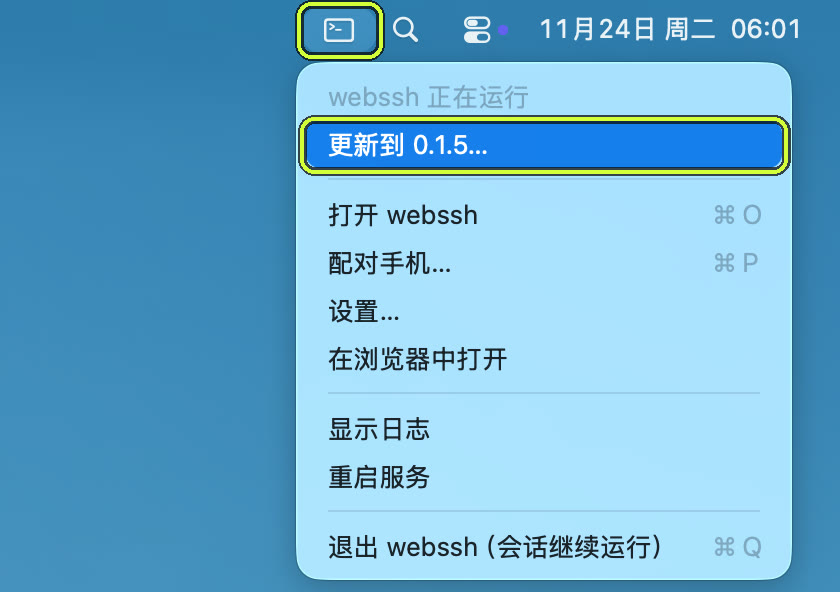
The webssh icon in the menu bar, and “Update to 0.1.5…” in its menu.菜单栏上的 webssh 图标,和菜单里的“更新到 0.1.5…”。 The browser opens the download page with your license key already filled in. Click Download. The page says the download is starting, and
@@K0@@(the number in the name is the version) goes to your Downloads folder. 浏览器会打开下载页,你的 license 已经填好了。点下载,页面显示“开始下载了”,@@K1@@(文件名里的数字是版本号)就存进了“下载”文件夹。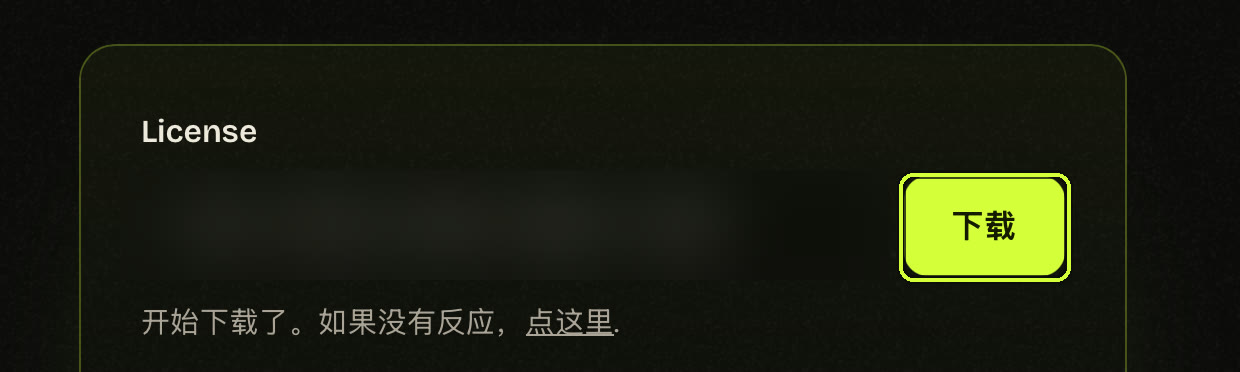
The download page: the key is already in (blurred here). Click Download.下载页:license 已经填好(图里打了码),点“下载”。 -
Quit. Click the webssh icon in the menu bar once more and choose the last item, Quit webssh (sessions keep running). When the icon is gone from the menu bar, webssh has quit. Your sessions are not affected: they keep running on the Mac. Only the phone can’t reach them until the new version is open. 退出。再点一次菜单栏上的 webssh 图标,选最下面的退出 webssh(会话继续运行)。图标从菜单栏上消失,就是退出了。会话不受影响,照常在 Mac 上跑;只是在新版本打开之前,手机暂时连不上。
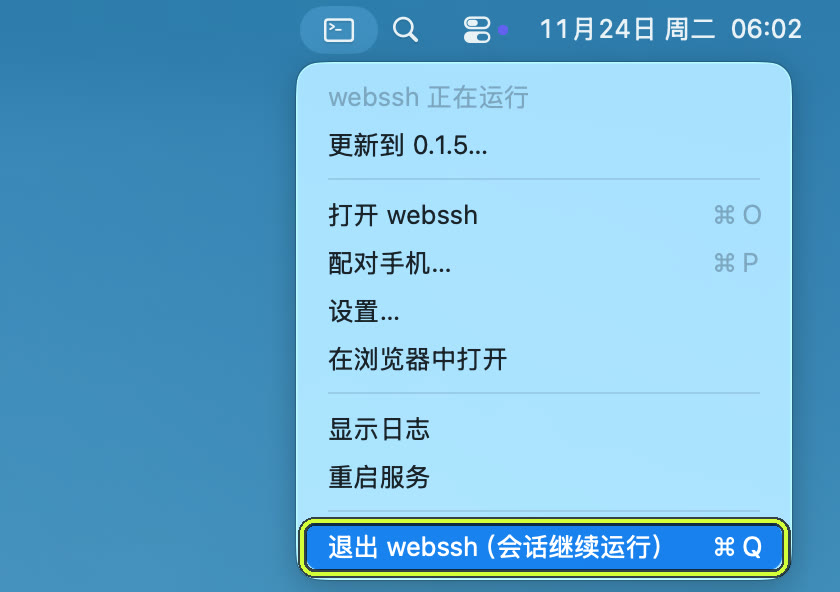
The last item of the same menu.同一个菜单的最后一项。 -
Replace. Double-click the
.dmgyou just downloaded, in your Downloads folder; a window opens. Drag the webssh icon on the left onto the Applications folder on the right, and let go. 替换。到“下载”文件夹里双击刚下载的.dmg,会弹出一个窗口。把左边的 webssh 图标拖到右边的 Applications 文件夹上,松手。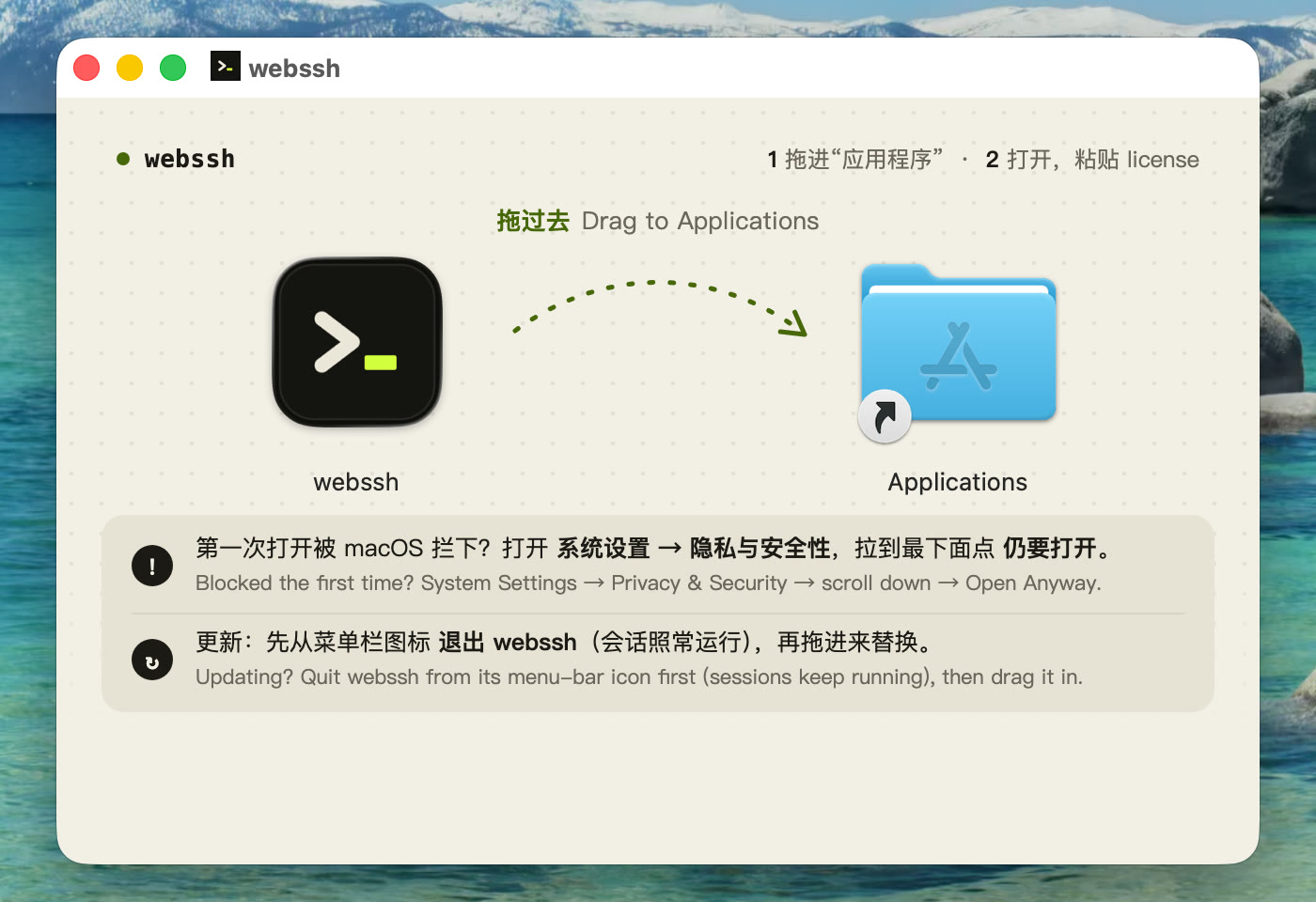
The installer’s window: drag the icon on the left onto the folder on the right.安装包的窗口:把左边的图标拖到右边的文件夹上。 Finder asks whether to replace the one that is already there. Click Replace. 访达会问要不要换掉原来的那个,点替换。

Finder: an older webssh is already there; replace it with the newer one? Click Replace.访达问:这里已经有一个旧的 webssh,要用新的替换吗?点“替换”。 -
Open again. Open the Applications folder and double-click webssh. Because it was just downloaded, macOS stops it, as on the first install, and says “webssh” Not Opened. Click Done. Careful: the highlighted blue button is Move to Trash. Don’t click that one. 再打开。打开“应用程序”文件夹,双击 webssh。因为它是刚下载的,macOS 会像第一次安装时那样拦住,提示未打开“webssh”。点完成。小心:亮着的蓝色按钮是“移到废纸篓”,不要点它。
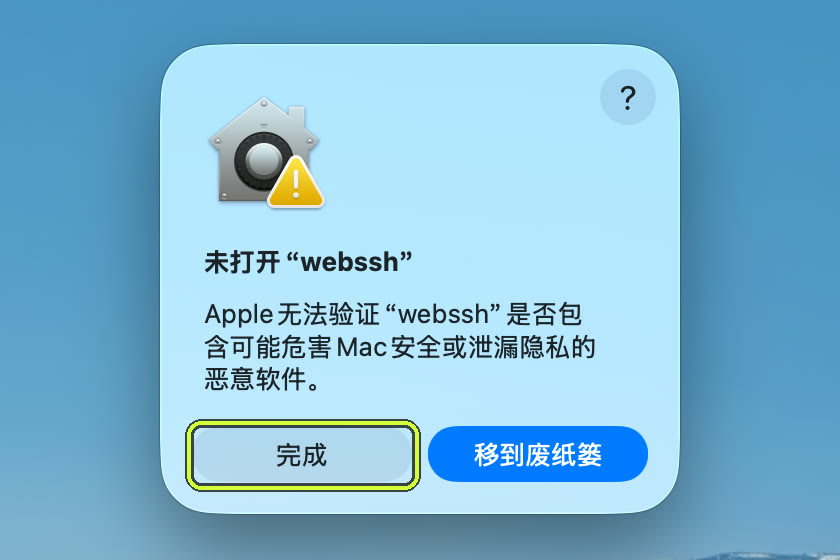
macOS’s message: click Done, on the left.macOS 的提示:点左边的“完成”。 Open System Settings → Privacy & Security and scroll all the way down to Security. There is a line saying that webssh was blocked; click Open Anyway next to it. 打开系统设置 → 隐私与安全性,一直拉到最下面的“安全性”。那里有一行已阻止“webssh”以保护 Mac,点它右边的仍要打开。
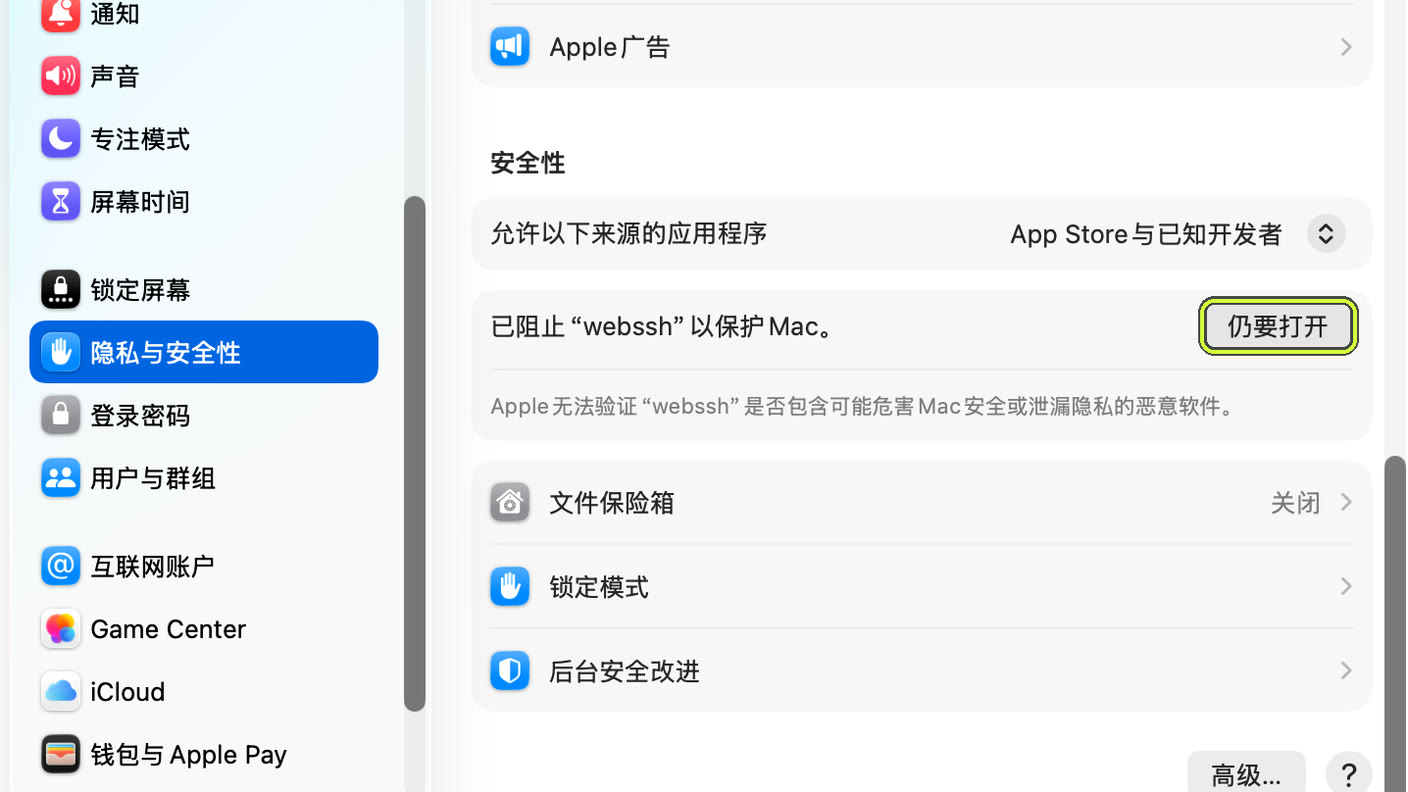
System Settings → Privacy & Security, at the very bottom.系统设置 → 隐私与安全性,拉到最下面。 macOS asks once more. This time click the middle button, Open Anyway (the blue one on top is Move to Trash again), then enter an administrator’s password for this Mac: usually the password you log in with. macOS 会再确认一次。这回点中间的仍要打开(最上面蓝色的还是“移到废纸篓”),然后输入这台 Mac 的管理员密码,一般就是你的登录密码。
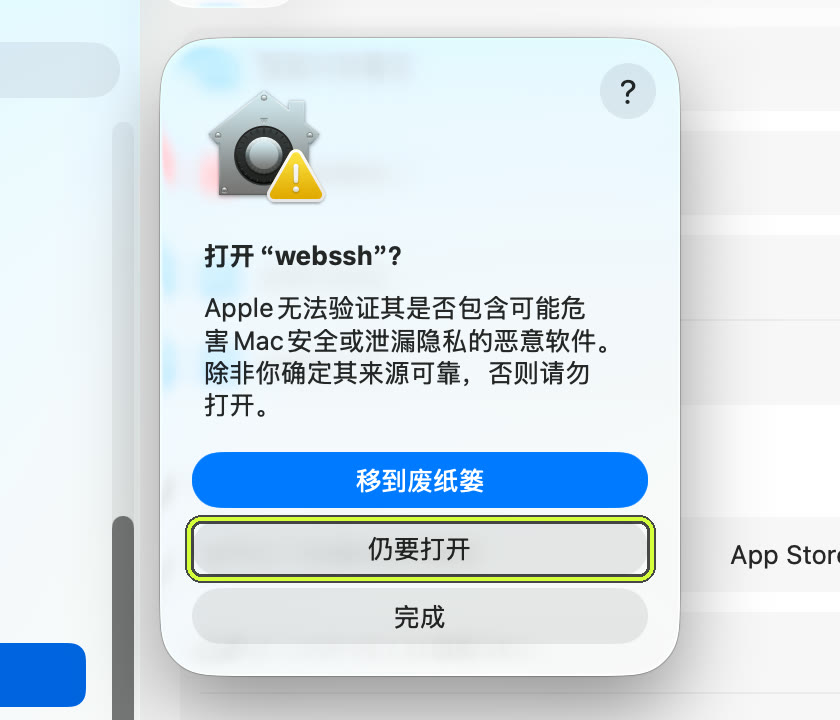
Three buttons: click the middle one, Open Anyway.三个按钮,点中间的“仍要打开”。 After that, webssh starts. No window opens: when its icon is back in the menu bar, the update is done. This approval is needed once for every update, because beta builds are not yet notarized by Apple. 确认之后,webssh 就启动了。它不会弹出窗口:菜单栏上的图标回来了,就说明更新好了。每次更新都要这样放行一次,因为测试版还没有经过苹果公证。


No update item in the menu?找不到更新按钮?
Afaron does not check for a new version all the time. It checks once, about 15 seconds after it starts, and then every six hours. So right after a release, the menu may not show Update to … yet. Either of these two ways gets you there. Afaron 不是时时刻刻都在查新版本:它启动后十几秒查一次,之后每 6 小时查一次。所以新版本刚发布的时候,菜单里可能还没有更新到 …这一项。下面两个办法,任选一个。
Way 1: have it check now办法一:让它马上查一次
Click the Afaron icon and choose Restart server. Wait half a minute (about 20 seconds is enough), then open the menu again: if there is a newer version, Update to … is there now. Restarting the server does not touch your sessions; the phone drops for a few seconds and reconnects by itself. 点菜单栏的 Afaron 图标,选重启服务。等半分钟(其实 20 秒左右就够),再点开图标:有新版本的话,更新到 …就在菜单里了。重启服务不会动你的会话;手机会断开几秒,然后自己连回来。

Way 2: go straight to the download page办法二:直接去下载页
Open the download page in your Mac’s browser, paste your license key (the WSSH-… you were sent), and click Download. What you get is always the newest version. Then carry on from step 2.
在 Mac 的浏览器里打开下载页,粘贴你的 license(就是当初收到的那串 WSSH-…),点下载。下到的一定是最新版。接着从第 2 步往下做。
No Afaron icon in the menu bar at all? Then Afaron is not running. Open it from Applications and the icon comes back. 菜单栏上连 Afaron 的图标都没有?那是 Afaron 没在运行。从“应用程序”里打开它,图标就回来了。
After updating更新之后
There is nothing to set up again. 什么都不用重新弄。
- Sessions ran the whole time. They run in tmux on the Mac, and did not stop while Afaron was quit, replaced and opened again. 会话一直在跑。它们跑在 Mac 的 tmux 里,退出、替换、再打开 Afaron 的这几分钟也没有停。
- Your phone does not need pairing again. A few seconds after the new version starts, it reconnects by itself; if you had closed the page, just open it again. 手机不用重新配对。新版本启动后几秒钟,它就自己连回来;页面要是关掉了,重新打开就能用。
- License, paired devices and settings stay as they were. There is no key to enter again. license、配对过的设备、各项设置都原样保留,不用再填一次 license。
To see which version you have: menu-bar icon → Open Afaron, click the settings button (the sliders at the top of the session list), and scroll to the very end. The Version line has the number. 想看现在是哪个版本:点菜单栏图标 → 打开 Afaron,点会话列表上方的设置按钮(三条滑杆的图标),一直拉到最底下,Version 那一行就是版本号。


The .dmg you downloaded is no longer needed: eject it and delete it if you like.
下载的 .dmg 用完了,可以推出、删掉。
Still stuck? See how to reach us. Everything else about Afaron is in the guide. 还是没更新成?联系方式见这里。其他用法都在使用说明里。